

Donor Moves — User Manual
Donor Moves is a fundraising pipeline app that helps you track donors from first contact to gift — and keep them moving forward.
Last revised: v2.1.47 — October 13, 2026
Contents
- Creating an Account
- Signing In
- The Pipeline
- Navigation
- Dashboard
- Adding a Donor
- Importing Donors
- Donor Detail Page
- Logging Interactions
- Recording Gifts
- Donors Page
- Calendar
- Weekly Digest Email
- Account
- Help & Support
- Security
- Legal
- Tips
Creating an Account
New organizations start with a 30-day free trial — no credit card required at signup.
iPhone: The iOS app is for existing accounts only. Create a new organization at app.donormoves.net/signup in your web browser, then return to the app and sign in.
On the web or Android:
- Open Donor Moves and tap New client? Get started.
- Fill in:
- Organization Name — your nonprofit or organization's name.
- Your Name — the primary account holder's full name.
- Email — used as your login email and recovery address.
- Time Zone — required and pre-filled from your browser or device when available. Confirm or change it using the picker shared with Account settings. If detection is unavailable, select a zone before submitting; blank or invalid zones block signup.
- Password — at least 8 characters.
- Check the I agree to the Terms of Service and Privacy Policy box. You must accept both to create an account. Tap the underlined links to read each document — they open in a new browser tab at donormoves.net/terms and donormoves.net/privacy.
- Tap Create Account. Your trial starts immediately.
Your agreement to the Terms of Service is recorded along with the version accepted and the date — this log is kept as part of your account record.
When your trial period is nearing its end, Donor Moves displays your remaining trial time and billing status. See the Billing section for details.
Signing In
What you need to log in
Every sign-in requires two things:
| Field | Description |
|---|---|
| The email address associated with your account. For org owners, this is the recovery email you set at signup. For team members, it is the email your org owner entered when adding you. | |
| Password | Your personal password. |
Recovering access
If you forget your password, tap Forgot password? on the sign-in screen and enter your email address. A reset link will be sent to that address.
If you have two-factor authentication on
If you've turned on two-factor authentication, signing in takes one extra step. After you enter your email and password, a Two-factor verification screen asks for a 6-digit code. Open your authenticator app, enter the current code, and tap Verify. If you don't have your authenticator app handy, you can enter one of your backup codes instead.
See Two-Factor Authentication to set this up.
The Pipeline
Every donor moves through five active stages, with one terminal outcome stage:
| Stage | Probability | What it means |
|---|---|---|
| Identification | 0% | Prospective donors being researched for giving capacity and mission alignment. |
| Qualification | 10% | Confirming the prospect has the capacity, interest, and readiness to give before deeper engagement. |
| Cultivation | 50% | Actively building the relationship through meaningful interactions, visits, and stewardship. |
| Solicitation | 75% | Making the ask — presenting a specific gift opportunity and seeking a commitment. |
| Stewardship | 100% | Thanking donors, reporting on impact, and deepening the relationship to inspire future giving. |
| Declined | 0% | Donors who have chosen not to give at this time. Excluded from weighted pipeline totals and the Pipeline History chart. |
The weighted gift (Ask Amount × stage probability) updates automatically as a donor advances. Donors can be moved to Declined from any stage via the move log or the donor edit form.
Moving backward between active stages starts a new ask cycle. For example, moving from Stewardship back to Cultivation clears the previous Ask Amount, Expected Date, Forecast Note, and any manual Forecast Probability override. Gift history, interactions, general notes, next-step details, and Stage History remain unchanged. Moving to or from Declined does not trigger this reset.
Navigation
| Section | What it shows |
|---|---|
| Dashboard | Pipeline summary, key stats, pipeline history chart, recent activity |
| Actions | All donors in a table sorted by stage; overdue and stalled donors flagged in red |
| Donors | Filterable donor list; overdue next steps highlighted in red |
| Interactions | Every logged interaction across all donors, grouped by date |
| Calendar | Week and month views of upcoming next steps |
| Account | Subscription, billing, recovery email, time zone, and fiscal year settings |
| Help & Support | AI assistant and link to email support — accessible from the sidebar and Account tab |
Dashboard
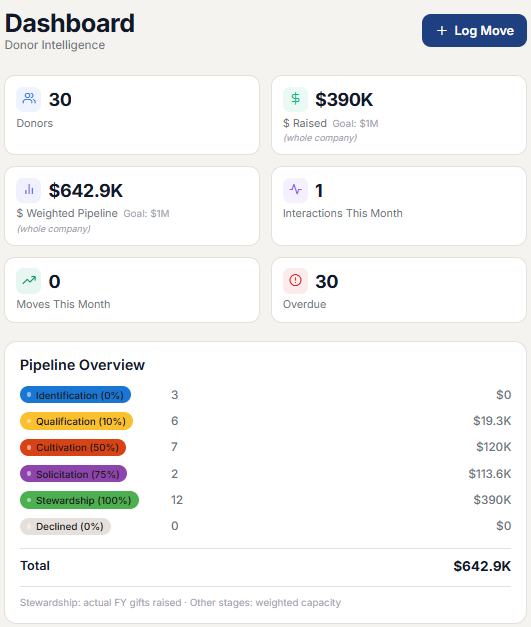
The dashboard gives you an at-a-glance view of your pipeline health.
What Should I Do Today?
At the very top of the dashboard, the What Should I Do Today? panel highlights the donors that need your attention right now. The heading shows a count of everything that's actionable, and up to four sections appear (each only when it has donors, showing at most five per section):
- Overdue follow-ups — donors whose next-step due date has already passed, with how many days overdue they are.
- Ready to ask — donors in the Solicitation stage who don't yet have a next step scheduled.
- Stalled 30+ days — donors you haven't interacted with in more than 30 days, with how long it's been.
- No next step — donors who have no planned next move or due date set.
Each donor appears in only one section — the most urgent one — so nobody is counted twice. Tap any row to jump straight to that donor's detail page. When there's nothing outstanding, the panel simply shows You're all caught up. Declined donors never appear here.
Stats Cards
The row of cards at the top of the dashboard shows your key numbers:
- Donors — the total number of donors currently in your pipeline. Tapping this card takes you to the Donors list.
- $ Raised — total gifts recorded within the current fiscal year (from the day after your fiscal year end through today), regardless of which pipeline stage the donor is currently in. If no fiscal year end is configured, all gifts are included. Where configured, a Goal: $X line shows the goal for the fiscal year selected in Pipeline Forecast.
- $ Ask Pipeline — the total ask amount for active opportunities in the selected forecast period.
- $ Weighted Pipeline — the existing stage-weighted pipeline. It continues to use each donor's standard pipeline-stage probability and is not changed by forecast overrides.
- $ Forecast Pipeline — the total of Ask Amount × Forecast Probability for active opportunities in the selected fiscal year, quarter, or month.
- Forecast vs Goal — the signed dollar and percentage variance between the full-year forecast and the goal saved for the selected fiscal year. If that year has no goal, the card shows N/A — no fiscal-year goal rather than using another year's goal. Quarter and month views do not compare against the annual goal.
Forecast Probability automatically follows the donor's current pipeline-stage probability unless you enter an override. Clearing the override restores automatic behavior. Expected Date controls which fiscal period includes the ask; an undated ask counts in the current unfiltered fiscal year until it is dated. Forecast Note is optional and limited to 120 characters.
- Interactions This Month — the number of interactions (calls, meetings, emails, etc.) logged so far this calendar month. Tapping this card takes you to the Interactions list.
- Moves This Month — the number of times a donor changed pipeline stage this calendar month.
- Overdue — the number of donors whose next-step due date has passed. Tapping this card takes you to the Actions table filtered to show overdue donors.
Pipeline Overview
The Pipeline Overview table breaks down your pipeline by stage, showing:
- Donors — the number of donors currently in each stage
- Weighted $ — the weighted value for that stage (see below)
- Total row — the combined value across all stages
How each stage is valued:
| Stage | Value shown |
|---|---|
| Stewardship | Actual fiscal-year gifts received — always matches the $ Raised stat card |
| All other stages | Ask Amount × stage probability, using the midpoint of each donor's capacity range |
The probability weights for non-stewardship stages are: Identification 0%, Qualification 10%, Cultivation 50%, Solicitation 75%. Declined donors carry 0% weight and are excluded from all weighted totals — they appear in the Overview with a donor count but contribute $0.
The legend at the bottom of the table reads: Stewardship: actual FY gifts raised · Other stages: weighted capacity
Pipeline History Chart
Below the overview table, the Pipeline History Chart shows a stacked bar graph of your pipeline's weekly value broken down by stage. Each bar represents one week, with color-coded segments for each stage. Dollar amounts are displayed at the top of each bar.
Bars are stacked so the most committed dollars sit at the bottom: Stewardship appears first (bottom), followed by Solicitation, Cultivation, Qualification, and Identification at the top. This keeps the most reliable revenue grounded and the most speculative at the top. Declined donors are excluded from the chart entirely.
The chart automatically scrolls to the most recent week on load. A gradient fade on either edge indicates that more bars extend off-screen — swipe (or scroll on desktop) to navigate. This chart makes it easy to spot trends — whether your pipeline is growing, shifting between stages, or stalling.
Portfolio by Type
Below Pipeline History, the Portfolio by Type table groups your donors into four entity types:
- Individual
- Corporate
- Foundation
- Government
For each type, the table shows the donor Count and Weighted $. All four rows are always shown, even when a type currently has no donors.
Weighted $ uses the same calculation as the main Weighted Pipeline total: donors outside Stewardship use weighted capacity based on their pipeline stage, while Stewardship uses actual gifts recorded in the current fiscal year.
Recent Moves
At the bottom of the dashboard, Recent Moves lists the latest stage changes across your donor portfolio, so you can see momentum at a glance.
Board Report
Before generating a Board Report, set both your Fiscal Year End and Time Zone in Account settings. A missing or invalid time zone prompts you to set it; the report does not assume UTC or another zone.
Tap Board Report on the Dashboard, then Generate Board Report to create an on-demand PDF for the current fiscal year. It includes gifts from the fiscal year's start through the last completed month, not gifts recorded during the current month. The subtitle shows the reporting period, and the Dollars Raised by Month chart breaks those gifts down by month. On the web, tap Download PDF to save the file. On iOS, sharing the PDF uses the share sheet when supported by the installed app version and device; an older installed version may not have the required native sharing support.
The report starts with three cards:
- Raised vs. Prorated Goal — gifts raised through the last completed month, shown with the rounded percentage of the prorated goal. The prorated goal is your annual fiscal-year goal divided by 12, multiplied by the number of completed fiscal months.
- FY-End Projection — that raised amount plus the stage-weighted pipeline of donors in the active stages (Identification, Qualification, Cultivation, and Solicitation).
- FY-End Forecast — that raised amount plus the forecast pipeline. Each active ask uses its forecast probability and expected date. A donor's probability override takes precedence when set; otherwise the donor's stage weight applies. Asks with no expected date are included in the current full fiscal-year forecast, and their count appears below this card.
The Pipeline by Development Stage table shows the active-stage pipeline as of the day you generate the report, not as it stood at the gift cutoff. It also lists Stewardship donors separately; the total includes active stages only. Gifts with invalid dates or amounts are excluded from the raised figure, and the number excluded appears in a footnote when applicable. Because the Dashboard's $ Raised card includes gifts recorded during the current month, its figure can be higher than the report's cutoff-based raised figure.
If the report is unavailable, you may see one of these messages:
- No fiscal year end set — set it in Account → Fiscal Year End before generating a report.
- No valid time zone set — set it in Account → Time Zone. If the fiscal year end is also missing, one message asks you to set both.
- Fiscal year does not end on the last day of a month — Board Reports currently require a month-end fiscal year end; the message includes the configured date and a support contact.
- No completed month yet — the first report for the fiscal year becomes available after its first month ends.
- No goal set — the PDF says No fiscal year goal set instead of showing a goal percentage; you can set a goal in Account → Fundraising Goal.
Adding a Donor
- Go to Donors and tap the + button.
- Fill in the donor's name, optional company, required Type, stage, and any contact info.
- Next Step and Due Date are required — they drive the calendar and weekly digest.
- Optional fields: Company, Ask Amount, Gift Type, assigned staff, address (Street, City, State, ZIP), notes.
Donor types: Individual · Corporate · Foundation · Government. Type appears after Company and before Pipeline Stage. You can change it later by editing the donor.
Gift types: Annual Gift · Fall Appeal · Benefit · Capital
Administrators: Every new donor must be assigned to an active client or deliberately marked Global / unassigned. Global records do not belong to any client and are labeled as such in the administrator donor list.
Importing Donors
If you have an existing donor list — for example from a spreadsheet or a previous system — you can bulk-import donors from the Account tab. Go to Account, find the Import My Data panel, and tap Import Donors to open the import window.
Administrators must choose the active client that owns the imported records, or deliberately choose Global / unassigned for a truly global list.
A Download template (.xlsx) link appears on the panel. Click it to download a pre-formatted Excel file with the correct column headers and a sample row — this is the fastest way to prepare your import file.
File Format
Prepare an Excel workbook (.xlsx) with the following columns in order. The first row may be a header row — it is automatically skipped.
| Column | Required | Notes |
|---|---|---|
| First Name | Yes | |
| Last Name | Yes | |
| Company | No | The donor's company or organization. |
| Type | Yes for current templates | Individual, Corporate, Foundation, or Government. Older files with no Type column default to Individual. If a Type column is present, blank or unsupported values cause that row to be skipped. |
| Stage | No | Identification, Qualification, Cultivation, Solicitation, Stewardship, or Declined. Defaults to Identification if blank or unrecognized. |
| Street | No | Street address (e.g. 123 Main St). Leave blank if unknown. |
| City | No | City name. |
| State | No | 2-letter state abbreviation (e.g. IL). Automatically uppercased. |
| ZIP | No | ZIP code (e.g. 62701). |
| Expected Date | No | Calendar date for the ask in YYYY-MM-DD format. Excel date cells are also accepted. |
| Forecast Probability (%) | No | Whole number from 0 to 100. Leave blank to use the donor's current stage probability automatically. |
| Forecast Note | No | Optional forecast context, up to 120 characters. |
Importing Historical Gifts
To bring in a donor's giving history at the same time, add groups of three columns after the optional forecast columns — one group per gift:
| Column | Required | Notes |
|---|---|---|
| Gift Amount | Yes (per gift) | Numeric value. Dollar signs and commas are stripped automatically (e.g. $1,000 → 1000). |
| Gift Date | Yes (per gift) | MM/DD/YYYY or YYYY-MM-DD. Excel date cells are also accepted. |
| Gift Type | No | Annual Gift, Fall Appeal, Benefit, or Capital. Partial matches work (e.g. Annual → Annual Gift). |
Add as many gift groups as you need — simply continue adding columns in sets of three for each additional gift. A gift row is skipped if the Amount or Date is missing or unreadable; it does not affect the donor row.
Example layout (18 columns for one donor with forecast details and two gifts):
| First Name | Last Name | Company | Type | Stage | Street | City | State | ZIP | Expected Date | Forecast Probability (%) | Forecast Note | Gift Amount | Gift Date | Gift Type | Gift Amount 2 | Gift Date 2 | Gift Type 2 |
|---|---|---|---|---|---|---|---|---|---|---|---|---|---|---|---|---|---|
| Jane | Smith | Smith & Associates | Corporate | Stewardship | 123 Main St | Springfield | IL | 62701 | 2026-10-15 | 60 | Strong interest | 5000 | 2024-03-15 | Annual Gift | 2500 | 2023-09-01 | Fall Appeal |
Imports that use previous templates without Type, forecast columns, or Company remain supported. Donors imported from a legacy file with no Type column are classified as Individual. | Bob | Jones | Cultivation | | | | | 1000 | 01/15/2024 | Capital | | | | | Alice | Brown | Identification | | | | | | | | | | |
After Import
Once you tap Import, the result banner reports:
- How many donors were added
- How many gifts were imported (if any)
- How many rows were skipped and why (e.g. missing name)
Imported gifts appear immediately on each donor's detail page and in the $ Raised dashboard stat. Stage changes from the import are not recorded in a donor's Stage History timeline — the import treats the stage as the donor's starting point, not a transition.
Donor Detail Page
Opening a donor shows everything about them in one place:
- Entity Type — Individual, Corporate, Foundation, or Government, shown beside the donor's pipeline stage
- Next Step card — turns red when overdue
- Weighted gift — ask amount × stage probability
- Interaction History — every logged contact, newest first
- Gifts — recorded donations with running total
- Giving status — a fiscal-year-based badge beside Gifts: New, Current, LYBUNT, SYBUNT, or No giving history
- Stage History — a timeline showing each stage the donor has been in and when they entered it
Moving a Donor to a New Stage
Edit the donor and change their Stage field. The date of the change is recorded automatically and appears in the Stage History timeline.
You can also move a donor's stage when logging an interaction — select New Stage at the bottom of the interaction form.
Forward stage changes preserve the current forecast details. A backward move between active stages clears the prior-cycle Ask Amount, Expected Date, Forecast Note, and manual Forecast Probability override so the new cycle starts cleanly. Historical gifts, interactions, notes, next steps, and the full Stage History are preserved. Moves to or from Declined do not clear forecast fields.
Logging Interactions
From a donor's detail page, tap Log Interaction.
| Field | Notes |
|---|---|
| Type | Phone Call, Meeting, Email, Event, Site Visit, Proposal, Letter, Other |
| Date | Defaults to today |
| Notes | What happened |
| Outcome | Result of the contact |
| Next Action | What you plan to do next |
| New Stage | Optionally advance the donor's stage at the same time |
Interactions can be edited or deleted using the pencil/trash icons on each card.
Voice notes
Right after a call or meeting, you can capture the interaction by speaking instead of typing.
- On the Log Interaction screen, tap Record voice note below the Notes field. (The first time, allow microphone access.)
- Speak naturally — the button turns into a red Stop button with a running timer.
- Tap Stop. A short "Transcribing…" indicator appears, then a Voice Recording section opens below Notes containing:
- The full transcript of what you said.
- A play/pause audio player with a draggable progress bar so you can scrub back and re-check any part.
- A Re-record link to discard and try again.
- Any action items mentioned (e.g. "send the proposal Friday") are pulled out automatically and appended to the Notes field as bullets like
• [Sarah] Send the new gift proposal by Friday. If no owner is mentioned, the bullet uses• [Unassigned] …. Edit them like any other text. - Hit Save. The transcript and the recording are stored with the interaction, and you can replay the audio any time you re-open it in Edit mode.
Voice notes work on both the mobile app and the web preview. Recordings are transcribed once after Stop — they aren't streamed live — so you do need a network connection at that moment.
If recording storage is temporarily unavailable, recording or playback shows a clear error. Other app features remain available; existing recordings and transcripts are not removed by this error.
Deleting an interaction or a donor also permanently deletes any voice recording attached to it.
Recording Gifts
From a donor's detail page, tap Log Gift.
| Field | Notes |
|---|---|
| Amount | Dollar amount received |
| Date | Date of the gift |
| Gift Type | Annual Gift, Fall Appeal, Benefit, or Capital |
| Notes | Any relevant context |
The total given appears on the donor card as a green badge. Gifts are also reflected immediately in the $ Raised stat on the dashboard.
Each gift card shows the fiscal year containing that gift, using your organization's Fiscal Year End setting. The badge above the list summarizes the donor's giving history:
- New — the donor's first-ever gift is in the current fiscal year.
- Current — the donor gave in the current fiscal year and also has earlier giving history.
- LYBUNT — the donor gave last fiscal year but has not yet given in the current fiscal year.
- SYBUNT — the donor gave in an earlier fiscal year, but not in the current or immediately preceding fiscal year.
- No giving history — no gifts are recorded for the donor.
These labels describe recorded giving history only. They do not change pipeline stages, forecast probabilities, or weighted pipeline calculations.
Donors Page
The Donors page lists all of your donors with search and filtering tools.
Searching and Filtering
- Use the search bar to find donors by name or email.
- Use the type filter chips to show All Types, Individual, Corporate, Foundation, or Government.
- Use the stage filter chips below the search bar to show only donors in a specific stage — including Declined. Tap a chip again to clear the filter.
- Use the giving status filter chips to show New, Current, LYBUNT, SYBUNT, or donors with No History.
Search, Type, Pipeline Stage, and Giving Status filters work together. For example, you can search for “Smith” while showing only Corporate LYBUNT donors in Solicitation.
Pagination
The list loads 50 donors at a time. A count at the bottom of the list shows how many donors are currently displayed versus the total (e.g., Showing 50 of 540 donors). Tap Load more to fetch the next 50. Changing the search term, Type, stage, or giving status filter automatically resets back to the first page.
Overdue Donors
Donors with a past-due next step are highlighted in red. They also appear in your weekly digest email.
Calendar
Switch between Week and Month views using the toggle at the top right.
- Week view — lists every donor with a next step due on each day; tap any row to open the donor.
- Month view — shows color-coded dots per day; tap a dot to open the donor.
Use the arrow buttons to navigate forward and backward.
Weekly Digest Email
When weekly email reminders are on, you receive an email every Monday morning listing every donor whose next step is overdue. Each item in the email has two one-click actions:
- Mark complete — clears the next step and due date
- Snooze — pushes the due date out by 7 days
No login required to use these links. The digest is sent to the Recovery Email address on your Account page.
You can stop or restart these emails at any time with the Weekly Email Reminders switch directly below Recovery Email on the Account page. This preference applies only to your login, so teammates can choose their own setting.
Account
The Account tab manages your personal settings and organization preferences.
Billing
Your subscription starts with a 30-day free trial. No credit card is required to sign up.
iPhone: The iOS app displays your trial and subscription status but does not offer signup, subscription, payment, upgrade, reactivation, or billing-management actions. Use Donor Moves in a web browser when you need to change billing.
Setting Up Billing
On the web or Android:
- Go to the Account tab.
- Tap Set Up Billing.
- You will be taken to Stripe's secure checkout page where you can enter your credit card or bank account details.
- After completing payment, your subscription is active immediately and you are returned to the app.
Managing Your Subscription
Once subscribed, use Donor Moves on the web or Android and tap Manage Billing on the Account tab to:
- Update your payment method
- View your invoice history
- Cancel your subscription
On web, Manage Billing opens Stripe in the same browser tab and returns you to Donor Moves when you finish. If Stripe cannot open your billing page, the app shows an explanation so you know what needs attention.
Billing Alerts
- A yellow banner appears when your trial has fewer than 14 days remaining. On iPhone, billing banners are informational and do not include purchase or payment actions.
- If cancellation is scheduled, an amber banner shows the date your paid access ends. You keep full access through that date.
- A red banner appears if a payment fails; you have a 3-day grace period to update your card before access is paused.
- If a payment fails, you will also receive an email notification at your recovery address with a direct link to update your payment method.
Subscription payments are processed securely through Stripe and renew monthly on the same date as your initial payment.
Billing status is synchronized automatically with Stripe. A subscription that is scheduled to cancel remains Paying through the end of its paid billing period, then changes to Canceled when Stripe ends the subscription.
Data Retention after Cancellation
When the paid billing period ends, your account enters a 90-day export-only window. During this window:
- You can sign in, view existing data, and export donor, move, gift, and stage-history CSV files.
- Adding, editing, importing, and deleting data are disabled.
- A banner in the app shows your exact export deadline and permanent deletion date.
- The banner turns red in the final 7 days as a reminder.
- 7 days before deletion, you will receive an email at your recovery address reminding you that your data will be permanently deleted.
- At day 90, all donor, gift, interaction, and staff data is permanently and irreversibly deleted.
If you resubscribe before the 90-day window closes, full read/write access is restored and the deletion countdown is cancelled.
Recovery Email
Add an email address under Recovery Email so you can reset your password if you're ever locked out. This address is also where enabled weekly digest emails and required billing and data-deletion notices are sent. This is also the email address you use to sign in, and is required.
Weekly Email Reminders
The Weekly Email Reminders section appears directly below Recovery Email. Use its switch to choose whether your login receives the Monday email with overdue donor follow-ups.
- On — your Monday digest is sent when you have overdue follow-ups.
- Off — your Monday digest is skipped. Password recovery, billing alerts, and data-deletion notices are not affected.
The setting is personal. Turning your reminders off does not turn them off for other team members, and you can switch them back on at any time.
Two-Factor Authentication
Two-factor authentication (2FA) adds a second layer of security to your account. When it's on, signing in requires both your password and a one-time 6-digit code from an authenticator app — so your account stays protected even if your password is ever compromised. 2FA is optional and is set up per person, so every user in your organization — owners, account admins, and team members — can turn it on for their own account.
Turning on two-factor authentication:
- Go to the Account tab and find the Two-Factor Authentication section.
- Tap Set Up Two-Factor.
- Scan the QR code with an authenticator app — Google Authenticator, 1Password, Authy, or any TOTP app. Can't scan? Tap to reveal the setup key shown below the code and enter it into your app manually.
- Enter the 6-digit code from your authenticator app and tap Enable.
- You'll be shown 10 one-time backup codes. Save these somewhere safe — each can be used once to sign in if you ever lose access to your authenticator app. They are shown only once, so record them before tapping Done.
Once it's on:
The section shows that two-factor is on and how many backup codes you have left. From here you can:
- Regenerate codes — generate a fresh set of 10 backup codes (your old codes stop working). You'll confirm with a code from your authenticator app.
- Disable — turn two-factor off. You'll confirm with a code from your authenticator app or a backup code.
Locked out? If you lose access to both your authenticator app and your backup codes, ask your organization's account admin to reset two-factor for you (see Team Members). If you are the account admin, or if you're not sure who to contact, email support@donormoves.net.
Team Members
The Team Members section shows everyone in your organization who can sign in. You can add new users and remove existing ones at any time.
Adding a team member:
- Tap Add Team Member.
- Enter their full name, their email address, and an initial password (at least 8 characters).
- The email address is required — the team member will use it to sign in.
- Tap Add. The new user can sign in immediately using their email address and the password you set. They will also receive a welcome email at that address with a sign-in link (the password is not included — share it with them directly).
Removing a team member:
Tap the trash icon next to any member's name and confirm the removal. They will no longer be able to sign in. You cannot remove yourself.
Transferring account admin rights:
The current account admin can choose Make Admin beside another active team member. Confirming the transfer makes that person the account admin and immediately changes the current admin to a standard team member. An account admin must complete this transfer before deleting their own login while active teammates remain.
Resetting a team member's two-factor authentication:
If a team member is locked out because they've lost their authenticator app and backup codes, an account admin can reset two-factor for them. A Reset 2FA link appears beneath a member's email address whenever they have two-factor turned on. Tap it and confirm — their two-factor is turned off immediately and they can sign in with just their password until they set it up again. This link does not appear for your own account; to manage your own two-factor, use the Two-Factor Authentication section instead.
Deleting Your Account
The Delete My Account action is available on the Account tab on iPhone, iPad, Android, and the web.
- Tap Delete My Account.
- Review the deletion consequences in the confirmation window.
- If you are the account admin and active teammates remain, choose a teammate and transfer account admin rights first. After the transfer, reopen or continue the deletion confirmation as a standard team member.
- Re-enter your account password.
- Tap Delete My Account to confirm.
What happens depends on whether other active team members remain:
- Other active team members remain: only your login and profile are removed. You are signed out on every device immediately. The organization, its donor data, its other team members, and its subscription remain active.
- You are the last active team member: your login is deactivated and all sessions are ended immediately. Any active subscription is canceled immediately. Organization data remains retained for up to 90 days and is then permanently deleted through the existing cancellation-retention process. The recovery email receives the standard reminder seven days before deletion.
An account admin cannot directly delete their login while active teammates remain. If the app's data ever identifies a sole active standard user rather than an admin, only that login is removed; organization data and billing are left unchanged for administrative review.
This action cannot be completed without the correct current password. If a required admin transfer has not occurred, the app explains that the transfer must happen first. If subscription cancellation fails, the account remains active and the app asks you to try again.
Time Zone
Set your organization's Time Zone so the app correctly identifies which donors are overdue today and so your weekly digest email arrives at the right local time.
- On desktop (web): choose from the dropdown list of common time zones.
- On native mobile: tap the time zone field and choose from the selection sheet.
Tap Save Time Zone to apply. Signup and Account use the same picker. The field is required — the Save button is disabled until a time zone is selected, and the Account API rejects blank or invalid values rather than clearing a saved zone. Existing organizations without a time zone can still open Account and set one; no automatic backfill is performed.
Fiscal Year End
Set your organization's Fiscal Year End date — the month and day when your fiscal year closes. Required — the Save button is disabled until both a month and a day are selected.
- Tap the month chip for the last month of your fiscal year (e.g., Jun for June 30).
- Enter the day in the Day field (e.g., 30).
- Tap Save.
The app validates the date as you type — for example, entering day 31 for a 30-day month will show an error and disable the Save button. Switching to a different month automatically adjusts the day if it exceeds that month's maximum.
Fiscal Year Goal
Set a separate fundraising goal for each fiscal year. The fiscal-year end date remains shared across all years, but changing one year's goal never overwrites another year's amount.
- Use the left and right arrows to select the fiscal year you want to review or edit.
- Enter the amount and tap Save Goal. Past and future fiscal years remain available through the same selector.
- To remove a goal for the selected year, clear the field and tap Save Goal.
- The Dashboard's Forecast vs Goal card uses only the goal for the fiscal year selected in Pipeline Forecast. A year without a goal shows N/A and does not fall back to another year's amount.
Each year's setting is shared across your whole account.
Once configured, the $ Raised dashboard card and the Stewardship row in the Pipeline Overview will only count gifts recorded on or after the first day of the current fiscal year. If no fiscal year end is set, all-time gift totals are shown instead.
Import My Data
On the Account tab, the Import My Data panel lets you bring an existing donor list into the app in bulk. This must be done from a desktop browser — file uploads are not supported on mobile.
- Download template (.xlsx) — click this link to download a pre-formatted Excel file with the correct column headers and one sample row. Fill it in and save it before importing.
- Import Donors — click this button to open the import window, choose your file, and upload it. The result banner will report how many donors and gifts were imported, and flag any rows that were skipped.
See Importing Donors for the full file format and column reference.
Export My Data
On the Account tab, the Export My Data section lets you download your data as CSV files ready to open in Excel or Google Sheets. This must be done from a desktop browser — file downloads are not supported on mobile. Available exports:
- Donors — your full donor list, including Type, Expected Date, Forecast Probability override, and Forecast Note
- Interactions — every logged interaction
- Gifts — all recorded gifts
- Stage History — the full stage change timeline for every donor
If your organization's trial has ended and access is paused, the locked screen offers the same four exports on the web: Donors, Interactions, Gifts, and Stage History. Exports are not available in the iPhone app; sign in on the web to download your data.
Help & Support
Tap Help & Support — available in the sidebar (desktop) and on the Account tab (mobile) — to open the support screen. It is also accessible from any billing-locked or email-verification screen so you can always get help even if your account is paused.
AI Assistant
The support screen includes a built-in AI assistant trained on this user manual. You can ask it anything about using Donor Moves — how stages work, what a field does, how to import data, and so on.
- Suggested questions appear when you first open the screen. Tap one to send it instantly, or type your own.
- The assistant keeps track of the conversation so you can ask follow-up questions naturally.
- Responses are based on the user manual content. If a Donor Moves question falls outside what the manual covers, the assistant will point you to email support. For questions unrelated to Donor Moves, it will politely let you know it can only help with the app.
Email Support
At the bottom of the support screen, a Contact Support link opens a pre-addressed email to support@donormoves.net. Use this for billing questions, account issues, or anything the AI assistant couldn't answer.
Reporting a Bug
If you are signed in to an organization account (either as an organization admin or a team member), tap Report a Bug near Help & Support on the Account screen. Describe what happened and, if you can, add the steps to reproduce it. The app sends its version, device/browser details, and current screen automatically to help the support team investigate. After submitting, you'll see “Thanks, we got it.” Reports are reviewed internally; the app does not show a report history or status updates. The Report a Bug option is not available in the separate system-admin console, which is used to review submitted reports.
Security
Donor Moves LLC takes the security of your organization's donor data seriously. The full security policy is published at donormoves.net/site/security. Key measures in place:
Encryption
- All traffic is protected by TLS (HTTPS). Unencrypted HTTP connections are rejected.
- Data stored in the database is encrypted at rest using AES-256.
Authentication & Access
- Passwords are hashed with bcrypt — never stored in plain text.
- Optional two-factor authentication (2FA) is available to every user. When enabled, sign-in requires a time-based one-time code from an authenticator app in addition to the password. One-time backup codes are provided for recovery, and the stored 2FA secret is encrypted at rest. See Two-Factor Authentication.
- Sessions expire automatically after inactivity and are invalidated on sign-out.
- Each organization's data is fully isolated at the application and database level — no cross-organization access is possible.
- Admin functions (managing team members) are restricted to the Administrator role.
- Transactional emails are sent over authenticated SMTP with TLS. Password reset links are single-use, time-limited tokens.
Ongoing practices
- Automated dependency vulnerability scanning and static application security testing (SAST) run as part of every release.
- Infrastructure follows the principle of least privilege.
Data retention after cancellation
- If you cancel, your data stays accessible for 90 days so you can export it. After that window it is permanently deleted. You can request earlier deletion by emailing privacy@donormoves.net.
Reporting a vulnerability
- Email support@donormoves.net with a description and steps to reproduce. We acknowledge reports within 48 hours.
For the complete policy — including breach notification procedures and EU/UK data considerations — visit donormoves.net/site/security.
Legal
Donor Moves' legal documents are published at donormoves.net and are accessible from within the app at any time:
| Document | Link |
|---|---|
| Terms of Service | donormoves.net/site/terms |
| Privacy Policy | donormoves.net/site/privacy |
| Security | donormoves.net/site/security |
Links to both documents appear in the footer throughout the app and on the account creation screen. Tapping either link opens the document in a new browser tab.
Terms acceptance — when you create an account, you must check the box confirming you agree to the Terms of Service and Privacy Policy. The version accepted and the date of acceptance are recorded on your account.
For questions about your data or our policies, contact us at support@donormoves.net.
Tips
- Stalled donors — any donor in the same stage for 30+ days is flagged in red. Check the Stage History timeline to see how long they've been stuck.
- Overdue next steps — shown in red on the donor list and detail page. The weekly digest also flags these.
- Edit or delete — every interaction and gift has edit (pencil) and delete (trash) icons on its card.
- Dark mode — the app follows your device's system setting automatically.
- Pipeline history — the dashboard chart lets you track whether your pipeline is growing week over week, which stages are most active, and where donors tend to stall.
- Data safety — if you ever need to cancel, your data stays accessible for 90 days. Export your donors, interactions, gifts, and stage history from the Account tab before the deletion date.